


Audiobook creation
Audiobook Factory
Your audio files become audiobooks ready to enjoy.
Impeccably organized audiobooks
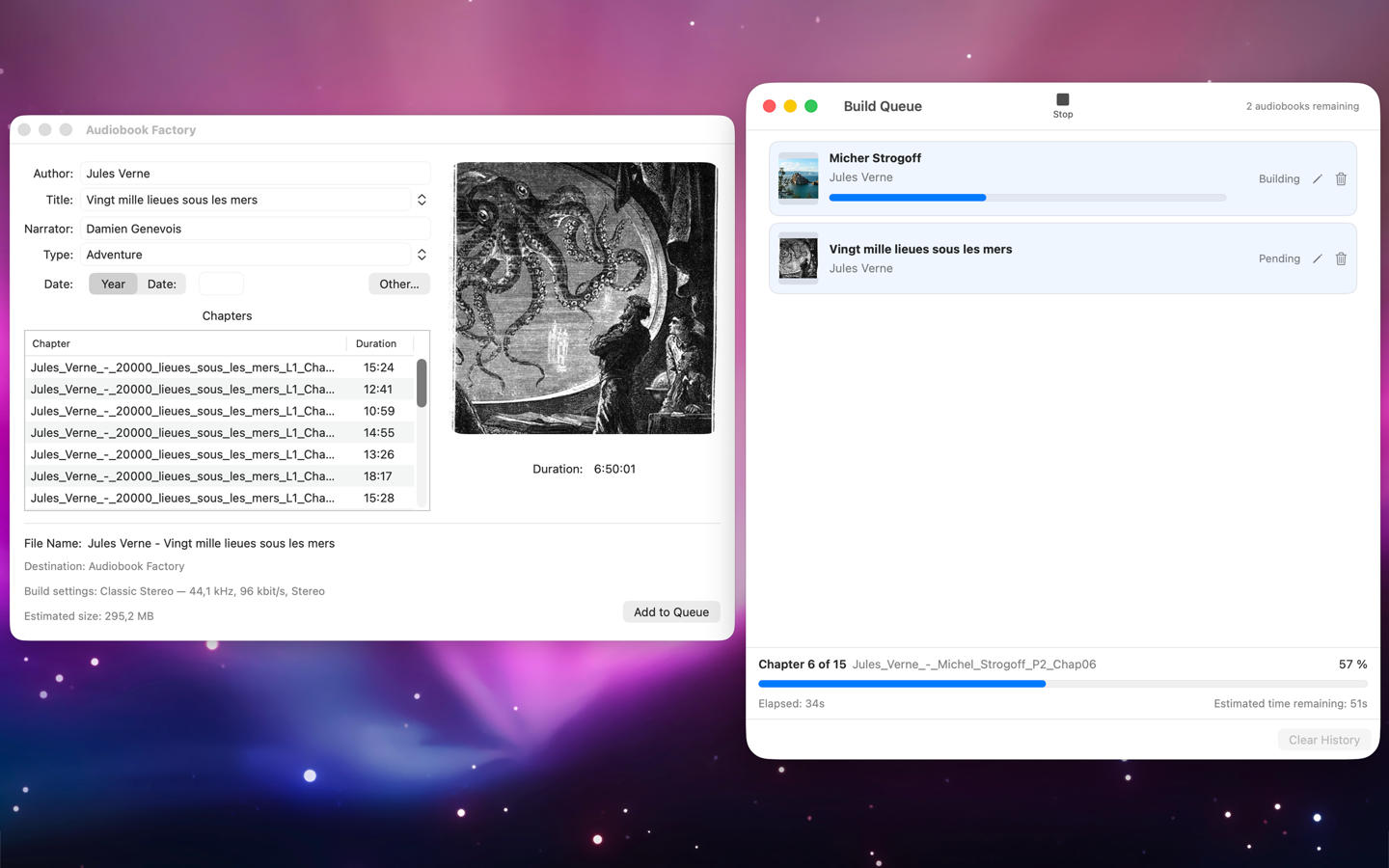
Import MP3, M4A, or M4B files, or simply drop in a folder. Audiobook Factory organizes tracks into chapters and lets you adjust metadata, description, and artwork before building.
Create a single M4B file, choose encoding quality, prepare several books in a queue, and follow their progress precisely.


User guide
Getting started with Audiobook Factory
From the first file to the finished audiobook: the essentials for a smooth workflow.
- 1
Add your files
Choose Add Files, use ⌘O, or drop MP3 files, M4A/M4B files, or a folder onto the editor.
- 2
Review the book
Check the title, author, narrator, genre, artwork, file name, destination, and encoding settings.
- 3
Add it to the queue
Add the book to the queue with ⌘B, choose a destination when needed, and confirm any warnings.
- 4
Follow the build
The queue processes one book at a time. Open it with ⌘J to see the current chapter, progress, and estimated time remaining.
Files and chapters
Use MP3 files to create a book; M4A and M4B files can also be edited or assembled. MP3 files are sorted naturally by name and each one becomes a chapter. Existing chapters are preserved for M4A and M4B files.
A folder detects audio files and artwork directly inside it, without scanning subfolders. Importing new files replaces the book currently shown, and the app warns you if there are unprotected changes.
Details and artwork
When available, the title, author, narrator, genre, and artwork are read from the first file. You can edit them before adding the book to the queue. Title, author, and artwork are checked; narrator and genre remain optional.
Drop a JPEG or PNG image onto the editor, or choose Edit Artwork. Set the output file name format in Settings with Author, Title, and Bitrate tags.
Quality and destination
Presets combine sample rate, bitrate, and channel count; each value can also be changed separately. Classic Mono is especially suited to spoken word and makes smaller files, while higher bitrates increase file size.
Choose a standard folder, a custom folder, or be asked each time. The size estimate is based mainly on duration and bitrate, so the final result may vary slightly.
Managing the queue
Books are built one after another. Pending jobs can be reordered by dragging, but not ahead of the current one. ⌘R stops or restarts the queue, and a job can be reopened and corrected.
Completed jobs remain in the history, where you can reveal the file in Finder or open it in Books. The queue is not preserved when the app closes.